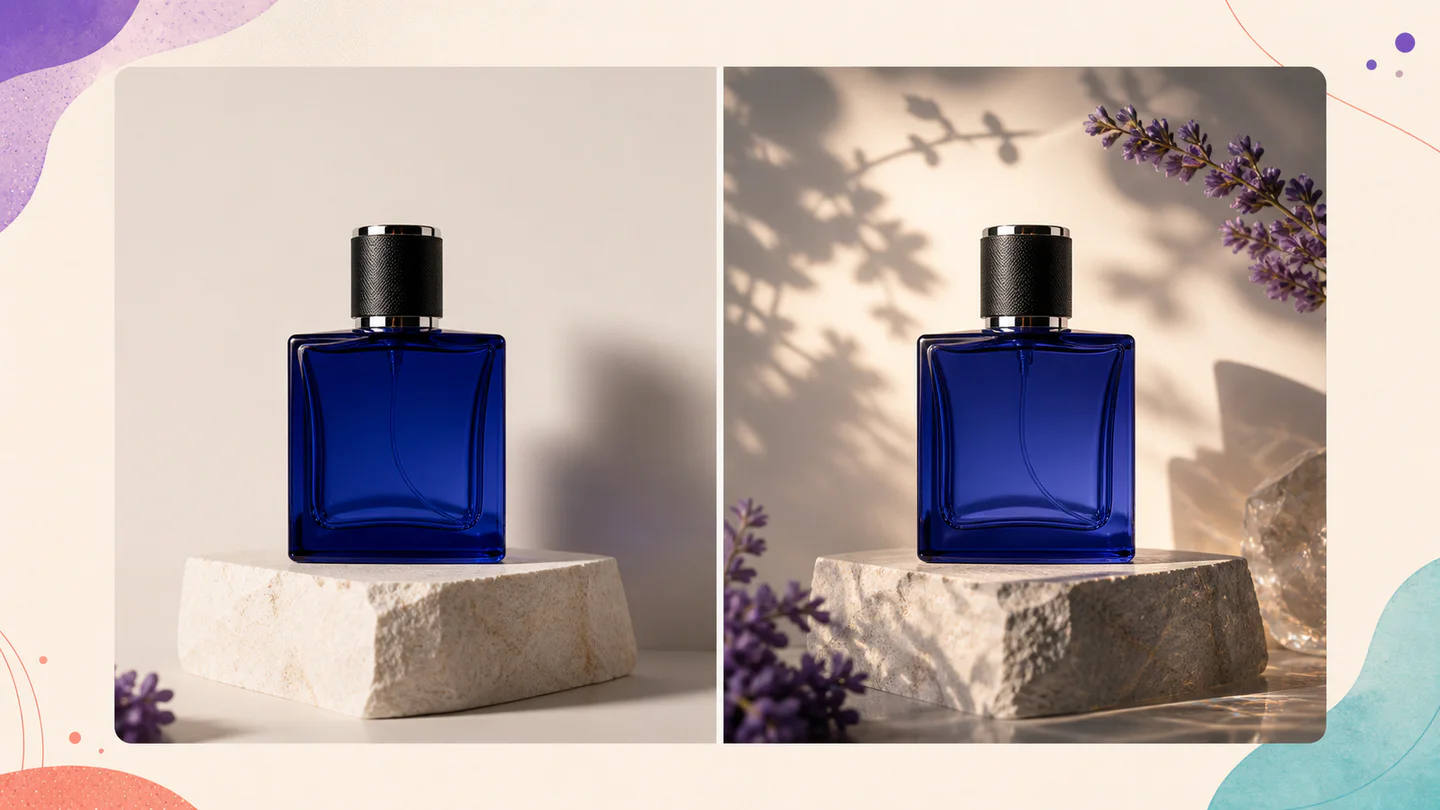

Marketplace-ready scenes
Create clean studio, white-background, and contextual variants from one approved source photo.
Commerce image workflow
Upload a product photo, describe the new setting, and edit it with GPT Image 2.5 Sunburst while keeping product geometry, labels, and brand details explicit.
Sign in is required before generation. The selected model and credit cost stay visible.
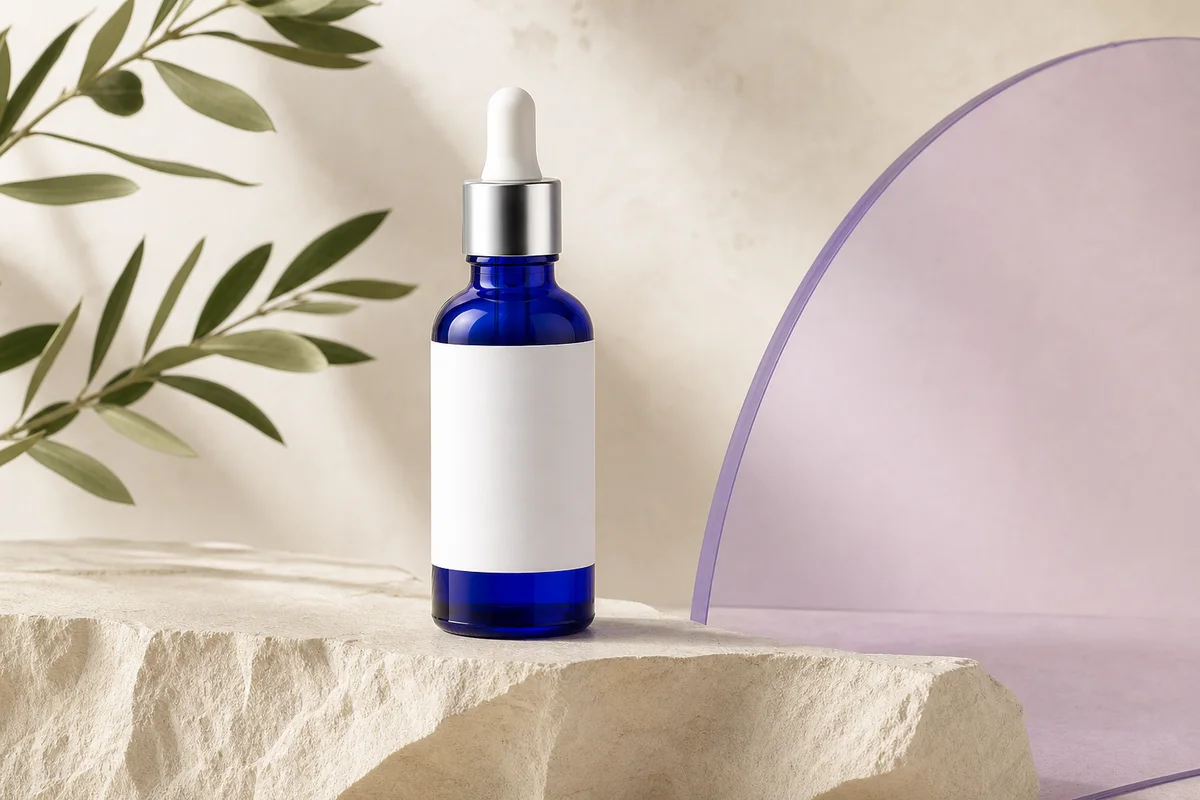
Workflow example
Product photo variations arranged for a consistent ecommerce campaign
Controls that match the task
Only the inputs that affect this workflow are shown.
Clear before you run
Model, availability, limits, and paid cost stay visible.
A usable result
Preview the output, then download or continue editing.
Verified workflow
The workspace submits to the named GPT Image 2.5 endpoint. It does not silently replace your selection with another model.
Step 01
GPT Image 2.5 Sunburst
Official provider identity
205/32,000
This page always submits to GPT Image 2.5 Sunburst. It never substitutes another model. Availability and billing are verified by the server before a task starts.
Step 02
Example · site-owned workflow illustration

Fast visual exploration and edits. This illustration is not presented as a live output from this model.
Recipe: A serene cliffside library at golden hour with cinematic depth and quiet detail.
mode: generate · ratio: 16:9 · quality: medium
Positioning, inputs, quality tiers, endpoints, and prices were checked against the official model pages.
Designed around the result
A useful product edit must preserve the SKU, packaging, label hierarchy, proportions, and claim text buyers rely on.
Create clean studio, white-background, and contextual variants from one approved source photo.
Reuse the same lighting, surface, camera angle, and negative constraints across a product set.
State exactly which label, logo, color, cap, and geometry details must remain untouched.
A predictable workflow
Each stage answers a practical question before the next action is available, so you can spot a wrong input before spending time or credits.
Use the sharpest product image available and avoid compressed screenshots.
List protected product details first, then describe only the scene change.
Inspect the label, edges, reflections, color, and contact shadow.
Reuse the accepted art direction while changing one scene variable at a time.
Practical answers
Yes. This workflow accepts reference images and starts with Sunburst because OpenAI positions it for editing precision.
List the protected geometry, colors, logo, label text, cap, materials, and camera angle before describing the scene change.
Review it against the physical product and marketplace rules first. Do not publish invented claims or misleading details.
The primary intent is to transform an approved source product photo, so the reference uploader is shown first.
Keep creating
Ready when you are